

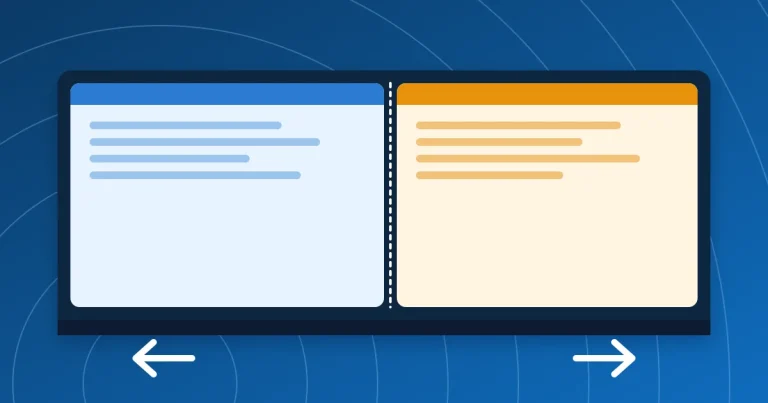
The feature this page calls “Aero Snap” is still in Windows 10 and 11. Microsoft now just calls it Snap, and it lives in Settings > System > Multitasking rather than in Windows 7’s Control Panel. Open Settings (Windows key + I), go to System, click Multitasking, and toggle Snap windows off.
Per Microsoft’s own Snap support page, fetched 2026-10-06, Snap is what resizes windows when you drag them to a screen edge or corner, and the Snap windows toggle turns it On or Off. With it off, you resize windows by hand.
Registry method: set WindowArrangementActive to 0
The registry fix used for Aero Snap on Windows 7, HKEY_CURRENT_USER\Control Panel\Desktop\WindowArrangementActive set from 1 to 0, is reported to turn Snap off on Windows 10. Microsoft does not document this value: it is not on Microsoft’s Snap support page, and a search of Microsoft Learn finds it only in Microsoft Q&A forum threads. It rests on those forum answers and was not tested on Windows 10 or 11. If the value doesn’t already exist under that key, right-click the empty space in the right-hand pane, choose New > DWORD (32-bit) Value, and name it WindowArrangementActive before setting it to 0. As always with registry edits: back it up first. The change may need a sign-out and sign-in or a restart before it applies; Microsoft does not say which.
The thing a modern reader is actually looking for: Snap Layouts
Windows 11 added a second, separate feature: hovering the mouse over a window’s maximize button pops up a grid of Snap Layouts to choose from. This is a distinct setting from basic edge-snapping, and it’s the one most people searching for “turn off snap” in 2026 actually mean: the edge-drag behavior above can stay on while you disable just the hover popup. In the same Settings > System > Multitasking panel, expand “Snap windows” and uncheck “Show snap layouts when I hover over a window’s maximize button.” Snap Layouts can still be triggered manually afterward with Windows key + Z; disabling the hover popup doesn’t remove the feature, just the automatic trigger.
What was not tested and where the steps come from
None of the steps above were run on a Windows PC. The Settings path and the Snap Layouts option come from Microsoft’s Snap support page; the registry value is not in Microsoft’s documentation and rests on community answers. Windows 7 itself has been out of Microsoft support since January 2020; Microsoft’s lifecycle dates are quoted in Windows 8 vs. Windows 7 on this site. Snap arranges windows on the desktop, while the apps pinned in the Start menu are arranged separately: drag a pin to move it, or drag one pin over another to make a folder (see pinning and grouping Start menu apps).
