

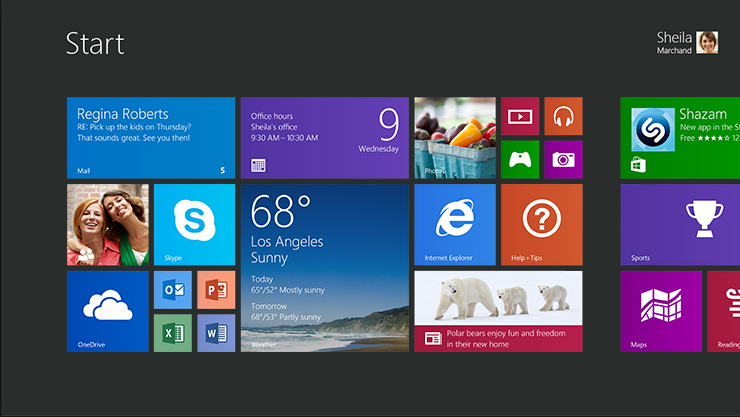
To pin an app in the Windows 11 Start menu, search for it, right-click it and select Pin to Start; to remove a pin, right-click it and select Unpin from Start. To group pins, drag one pinned item over another to create a folder.
Windows 8’s full-screen tiled Start screen doesn’t exist anymore. Windows 10 shrank it into a smaller tile panel next to the Start menu, and Windows 11 removed live tiles entirely. Windows 8 itself has been out of support for years. What replaced tiles in the current Start menu is a fixed grid of pinned icons. This is how it actually works today, quoted from Microsoft’s own Start menu customization documentation (fetched 2026-08-11, applies to Windows 11).
Table of Contents
Pins, not tiles
Microsoft’s own description of the current layout: “Pins: Pinned apps, files, folders and websites in a grid format for easy access.” There’s no resizing to Small/Medium/Wide/Large the way Windows 8 tiles worked, and nothing displays live content the way a Windows 8 weather or mail tile did: a pin is a static icon.
Pin and unpin
Quoted directly: “There are different ways to pin apps or shortcuts to the Start menu. For example: [in the] search box on the taskbar or on the Start menu, type the name of the app you want to pin. Right-click on the app, then select Pin to Start.” Websites work too: “open Edge and navigate to the website you want to pin,” then use Edge’s own pin option.
To remove one: “right-click on it and select Unpin from Start.”
Grouping, the replacement for tile groups
Windows 8 let you name groups of tiles by zooming out and typing a group name. The current equivalent is folders: “To create a folder, drag one pinned item over another to create a folder. The folder will automatically be created, and you can rename it.” Add more items by dragging them in; “once only one pin is left, the folder is removed from the Start menu” automatically.
Reordering is unchanged in spirit: “drag the pin from its current position to a different one,” just without the free-form multi-column canvas Windows 8 offered.
If you’re still on Windows 10
Windows 10 kept a version of resizable tiles, closer to the Windows 8 layout. That’s worth knowing only in passing: Microsoft’s same documentation notes that “Support for Windows 10 has ended on October 14, 2025,” so a Windows 10 machine is now in the same unsupported category as Windows 8 was. See the end-of-support breakdown for what that means in practice.
For the keyboard shortcuts that used to control the tile screen directly, see which Windows 8 shortcuts still work today. Most of the tile-specific ones don’t, because the screen they controlled is gone.
