

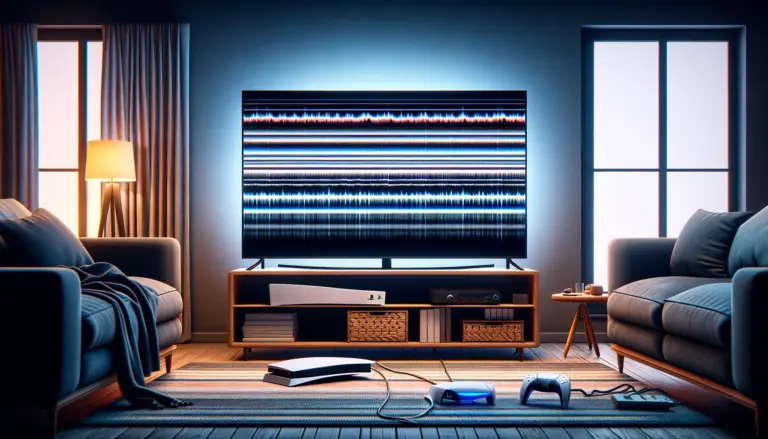
Go to Settings > Screen and Video > Video Output > Video Transfer Rate and change it from Auto to -1, then -2 if the flickering continues. This is the first thing to try because it is the only setting Sony’s own documentation connects to this symptom by name: Sony describes the option as “Adjust the transfer rate for 4K resolution video. If you experience flickering on the screen, try selecting -1 or -2 to limit output.”
If that does nothing, work through Sony’s no-picture sequence below. Everything here is ordered by what Sony documents, not by guesswork about which cause is most common — and where Sony documents nothing, this page says so. I do not have a PS5, so nothing here was reproduced on hardware.
Table of Contents
Sony’s own troubleshooting order
From Sony’s support page on PS5 picture and sound issues, in the order Sony lists them:
- Check the HDMI connection. “Make sure you have a secure connection to both your PS5 console and the screen using the included HDMI cable.”
- Connect directly to the HDMI port. “Connect the PS5 console directly to the HDMI port on the screen. If you have other devices connected to your screen (sound bar, home theater, game capture devices, etc.), disconnect them.” Capture cards and AV receivers sit in the middle of the HDMI chain, so this step is worth doing properly rather than skipping.
- Power-cycle both devices. “Turn off your screen and PS5 console completely. Disconnect their power cables, wait 20 minutes, and then reconnect the power cables again.”
- Update your screen’s firmware. “Make sure your screen has the latest firmware version.” This is the TV’s firmware, not the console’s.
One caveat: that page is written for no image and never uses the word “flickering”. The steps are still the right physical-layer checks, but only the Video Transfer Rate setting is documented by Sony as a flicker fix.
The cable
Sony’s position is: “The HDMI cable included with the PS5 console is recommended. Otherwise, an Ultra-High-Speed HDMI Cable that supports HDMI 2.1 should support ALLM.”
The claim that the PS5 requires “HDMI 2.0 or higher” is wrong, and it is the kind of advice that sends people to buy a cable that cannot carry 4K120. If you have replaced the box cable, an Ultra High Speed HDMI cable is the specification to match — for example this Anker cable. Test with the cable that came in the box first; it meets Sony’s own recommendation and rules the cable out for free.
Other video settings, and what Sony actually says about them
These all live under Settings > Screen and Video > Video Output. Sony documents each setting but does not link any of them to flickering, so treat these as things to test one at a time, reverting each before trying the next:
- VRR — “Allow the refresh rate to adjust in real time while using TVs and games that support VRR (variable refresh rate).” Sony’s only caveat is “Results vary depending on the TV you’re using,” so turning it off is a reasonable test.
- 120 Hz Output — “Turn on to enable 120 Hz video output for your TV and games that support 120 Hz frame rate.”
- Deep Color Output — “Enables smooth image rendering.”
- HDR — “Experience more realistic image detail with an HDR (high dynamic range) TV.”
- Resolution — “Set the screen resolution. When you select Automatic, it’s set to the highest resolution your TV supports.”
- RGB Range — not a general-purpose knob: “Change this only when you use an HDMI device that doesn’t send RGB range information correctly.” Leave it alone unless you have that exact problem.
If the screen is too unstable to reach the menus
Use Safe Mode. Option 2 is Change Video Output: “Select Change Resolution or Change HDCP Mode. These options can be helpful when troubleshooting issues with blank screens.” That is also where HDCP is handled. I could not confirm that an “Enable HDCP” toggle exists at Settings > System > HDMI in current PS5 system software; Safe Mode’s Change HDCP Mode is the option Sony documents.
Console orientation and failure rates
Standing the console horizontally. The idea that lying the PS5 flat might fix flickering through better ventilation or a steadier HDMI connection is not supported. Sony’s setup documentation covers vertical and horizontal placement and says nothing connecting orientation to video output or signal integrity. It is folklore.
Causes ranked by how often they happen. Sony publishes no failure-rate data. Any article giving you percentages for this is making them up.
When it is the hardware
If the flickering survives a different cable, a direct connection, a power cycle and the Video Transfer Rate change, Sony’s documented next step from both the picture-issues page and Safe Mode is the same: go to PlayStation Repairs. Sony publishes no self-diagnosis for a failed HDMI port, so there is no test here that will confirm one for you.
