

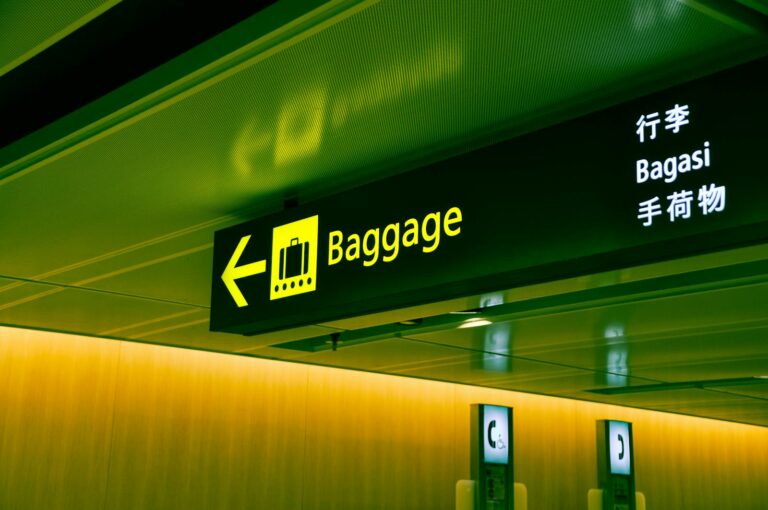
Translating text with your Android phone’s camera means pointing it at a sign, menu, or document and getting the translation back instantly, without typing anything. This guide covers Google’s camera-based translation, which is the tool most people mean when they ask about this.
Google Translate’s Camera Feature Is Google Lens
An earlier version of this page walked through “Google Translate’s Camera Feature” and “Google Lens for Translation” as two separate, independently current methods with two separate sets of steps. That’s stale. Since 2022, Google Translate’s own camera button opens a Lens-powered interface rather than a separate translation-only camera pipeline — tapping the camera icon in Translate and opening Lens and picking its Translate filter now go through the same underlying engine. That 2022 date is reported consistently by tech press at the time (9to5Google, December 2022; Android Police, February 2022, on the iOS-first rollout) — it is not a date Google’s own current help page states. That page (support.google.com/translate/answer/6142483), checked directly for this rewrite, doesn’t mention Lens by name or give any date; it just documents “the camera” as a single feature. So: trust the “it’s one engine now” claim, and treat the specific year as press reporting rather than Google’s own documentation.
Practically, this means you don’t need to learn two separate tools. Here’s the one method:
- Install Google Translate from the Play Store if it isn’t already on your phone.
- Open the app and set your languages — the source language (what you’re translating from) and the target language (what you want it translated into).
- Tap the camera icon on the main screen.
- Translate text two ways:
- Instant translation: point your phone at the text and the app overlays the translation in real time.
- Photo translation: take a picture, then highlight the part you want translated.
Download language packs in advance (in the app’s offline languages settings) if you want this to work without a data connection — real-time translation is faster with a connection, but isn’t required once packs are downloaded.
Tips for Better Camera Translation
- Good lighting. The camera needs to read the text clearly; poor lighting is the most common cause of bad translations.
- Hold steady. Motion blur breaks text recognition before it breaks translation quality.
- Preload language packs. Do this in the app’s settings before you travel, not when you’re already offline and need a translation.
Other Translation Apps
If Google’s tools don’t cover a language or use case you need:
- Microsoft Translator — camera translation with broad language support.
- Camera Translator — a simpler, single-purpose app for translating text from images.
Camera translation on Android has effectively become one feature wearing two names — Translate’s camera button and Lens’ Translate filter both hand the image to the same pipeline. For more on what’s changed with Android’s built-in tools generally, including which old menu paths and apps are no longer current, see Android tips and tricks guide.
Check this yourself. Every command and every block of output on this page is reproduced by /verify/translate-text-using-camera-android.sh. Download it and run it: it creates its own scratch files, prints one line per claim, cleans up after itself, and exits non-zero if any claim here turns out to be wrong. If it disagrees with this page, the page is wrong.
