

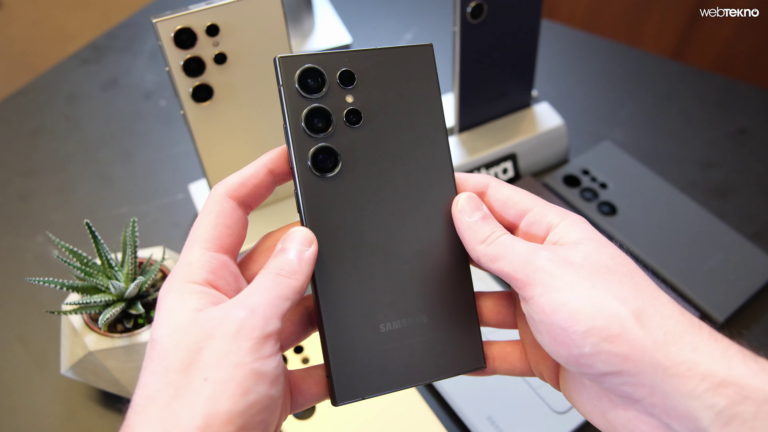
Power the phone off completely. Turn it back on, and “when the Samsung logo appears, press and hold the Volume down button” until it finishes booting. If it worked, the words “Safe mode” appear in the bottom left corner of the screen. That is Samsung’s primary documented method for Galaxy phones, including the S22, S23 and S24, and it is the one to use when the phone is too unresponsive to reach a menu.
If you would rather not power down: “press and hold the Side button and the Volume down button at the same time” (or open the Quick panel and tap the Power icon), then “Touch and hold the Power off icon. Tap the Safe mode icon.”
I have no Galaxy phone. Both procedures above are quoted from Samsung’s own Safe mode page. As of October 2026 the button sequence had not drifted across One UI releases, although it is widely claimed to have: Samsung documented the same Side + Volume down power menu, and the same long-press on Power off. Samsung presents the power-menu route as the fallback “If you’re having trouble turning on Safe mode using the previous steps.”
Table of Contents
Will Safe mode delete my data?
Samsung marks the following as Important on its Safe mode page: “When you exit Safe mode, some of your customization options (wallpapers, themes, etc.) may be reset to defaults.” Your files, photos and messages are not touched. Your home screen layout, wallpaper and theme may be. If you have spent an evening arranging widgets, that is worth knowing before you reboot rather than after.
What Safe mode actually does
In Samsung’s words, “In Safe mode, your device won’t run any third-party apps.” That is the entire diagnostic value: it splits the problem in two. If the phone behaves normally in Safe mode, something you installed is responsible. If the fault is identical in Safe mode, no app is responsible and you are looking at system software or hardware — which means uninstalling things is wasted effort, and it is time to talk to Samsung Support or an authorised service centre.
Samsung’s advice for the first case is specific and worth following in order rather than at random: “Start by removing apps that were updated or installed when the problem started.” Uninstall one, reboot out of Safe mode, and check. One at a time is slower and it is the only way you learn which app it was.
Safe mode is not a niche trick, either — Samsung’s own troubleshooting pages for fast battery drain reach for it too, on the same logic.
Getting out
“To exit Safe mode, simply restart your phone or tablet and it will reboot normally. Or, you can tap the Safe mode notification; swipe down from the top of the screen, and then tap the Safe mode is on notification. Tap Turn off.”
If it boots straight back into Safe mode
Restart once more first — Samsung notes that if “Safe mode” does not appear when you want it, you simply repeat the steps, and the reverse is equally true. Beyond that, one inference worth stating as an inference rather than a fact: since Samsung documents that holding Volume down during boot is what triggers Safe mode, a Volume down key that is physically stuck, or pressed by a tight case, will re-trigger it on every start-up. Take the case off and try again. Samsung does not document this cause; it follows from the trigger they do document.
One thing to expect
Samsung’s standard caveat applies here as everywhere: “Available screens and settings may vary by wireless service provider, software version, and device model.”
